Plugin setup guide
1. What you receive
- Weblo TTS plugin ZIP (or download link).
- Domain-bound licence key.
- This guide - you configure everything yourself in the plugin.
2. Prerequisites
- WordPress ≥ 6.0, WooCommerce ≥ 7.0, HTTPS store.
- Active TikTok Shop seller account.
- Woo product categories + shipping methods.
- Licence key must match your store domain.
3. Recommended order
- Install plugin + activate licence
- Connect TikTok Shop (OAuth)
- Mapping: categories → couriers → attributes → statuses
- Automation: TikTok warehouse + sync rules
- Products: map / publish to TikTok
- Orders: pull and import to Woo
4. Steps with screenshots
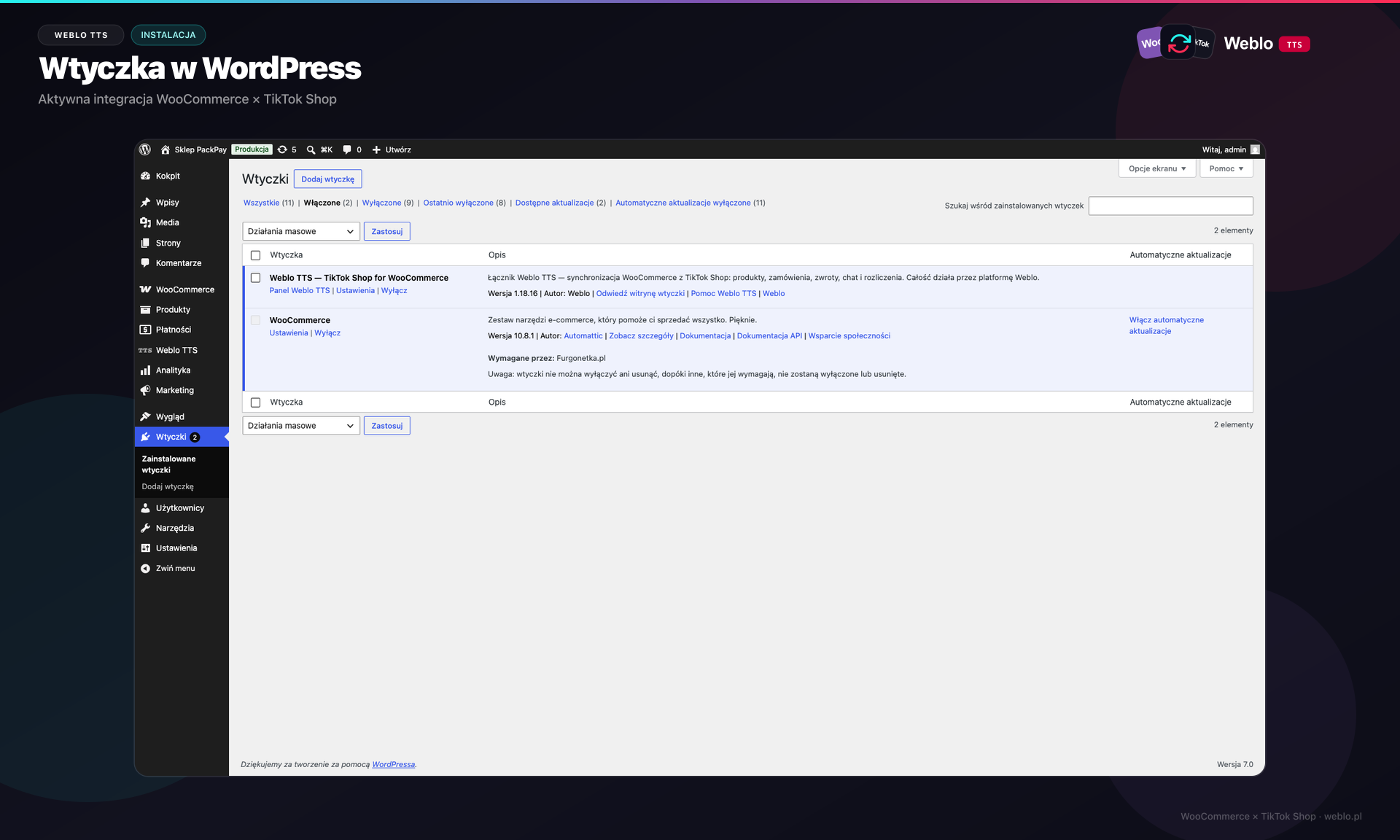
Step 1 - Install plugin
WordPress: Plugins → Add New → Upload. Upload the Weblo TTS ZIP and activate.
- Sidebar menu Weblo TTS appears. Without a licence only Licence is available.
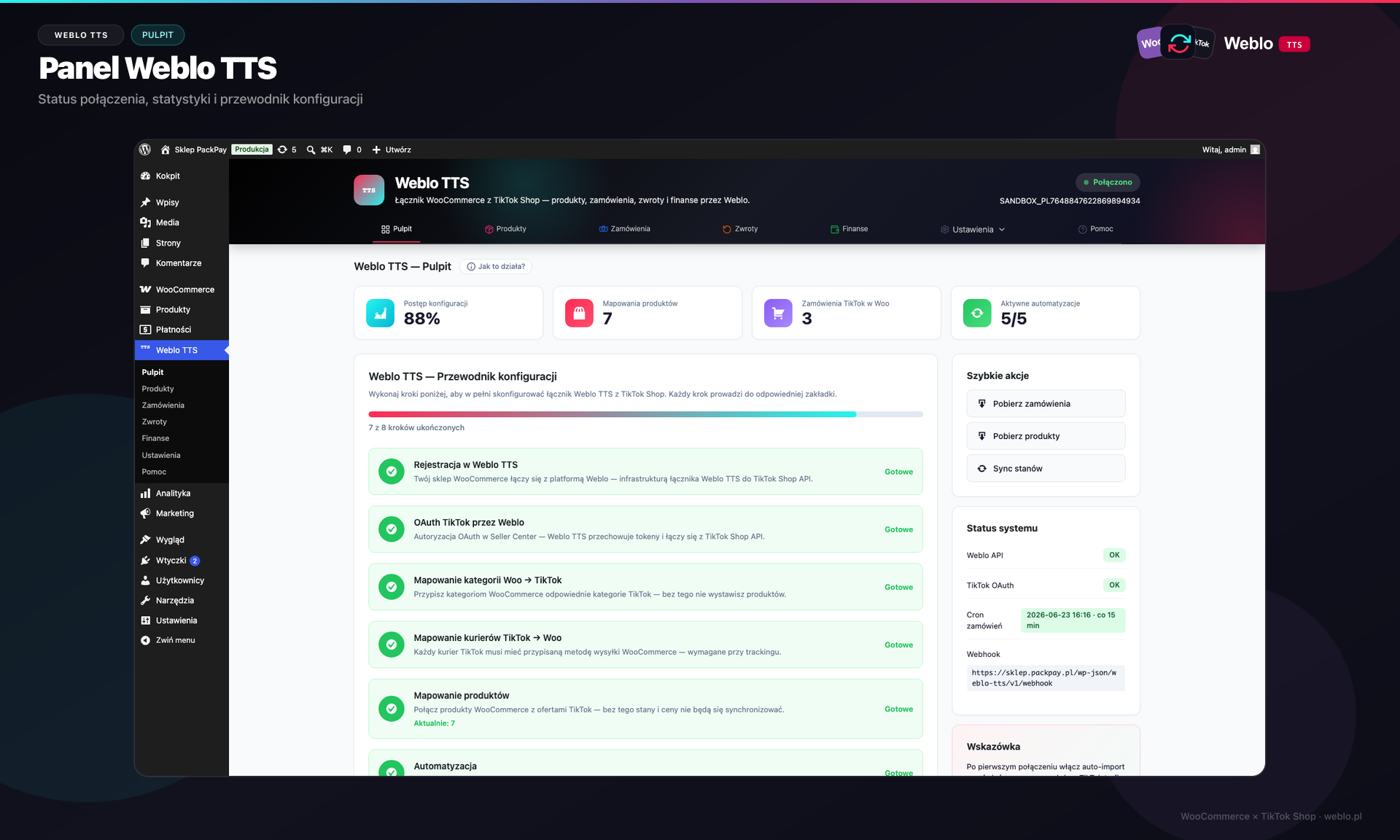
Step 2 - Dashboard checklist
Activate the licence key under Weblo TTS → Licence, then open the Dashboard and complete critical steps.
- Critical: licence, OAuth, category map, courier map, TikTok warehouse.
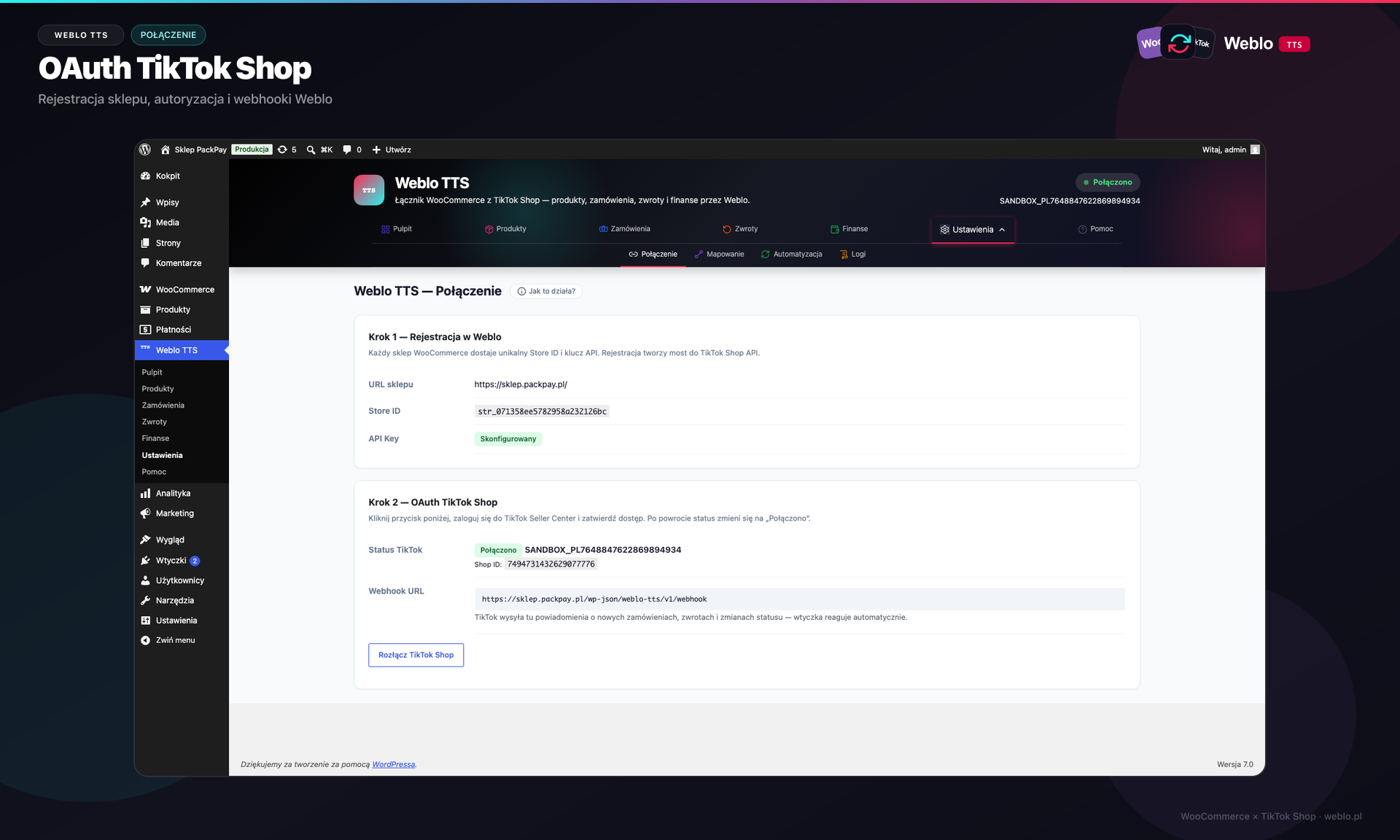
Step 3 - Connect TikTok Shop
Settings → Connection → Connect TikTok Shop via Weblo and authorise in Seller Center.
- Disconnect clears product/order links - use carefully.
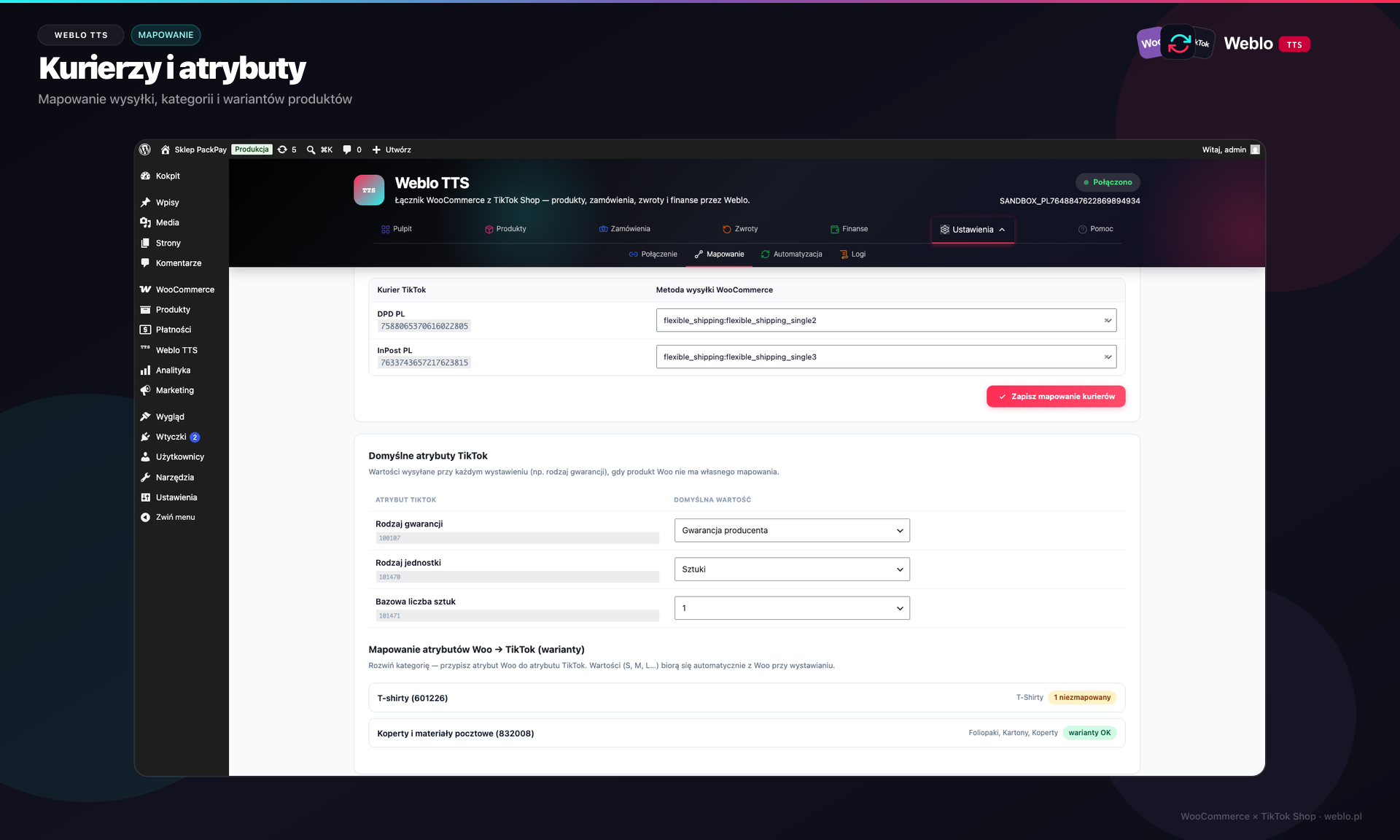
Step 4 - Mapping
Settings → Mapping: categories, couriers, attributes, order statuses. Click Save mapping.
- Categories + couriers are required before product push / order import.
- Attributes are mapped per TikTok category - not once for the whole store. After categories, open Attributes and map Woo → TikTok fields for each category.
- You may use Auto-map, but always verify every category: correct field pairing, required attributes filled, variants (size/color) linked properly. Wrong mapping causes listing rejections or broken variants.
- Save mapping after changes. When you add a new category, revisit Attributes before publishing products from it.
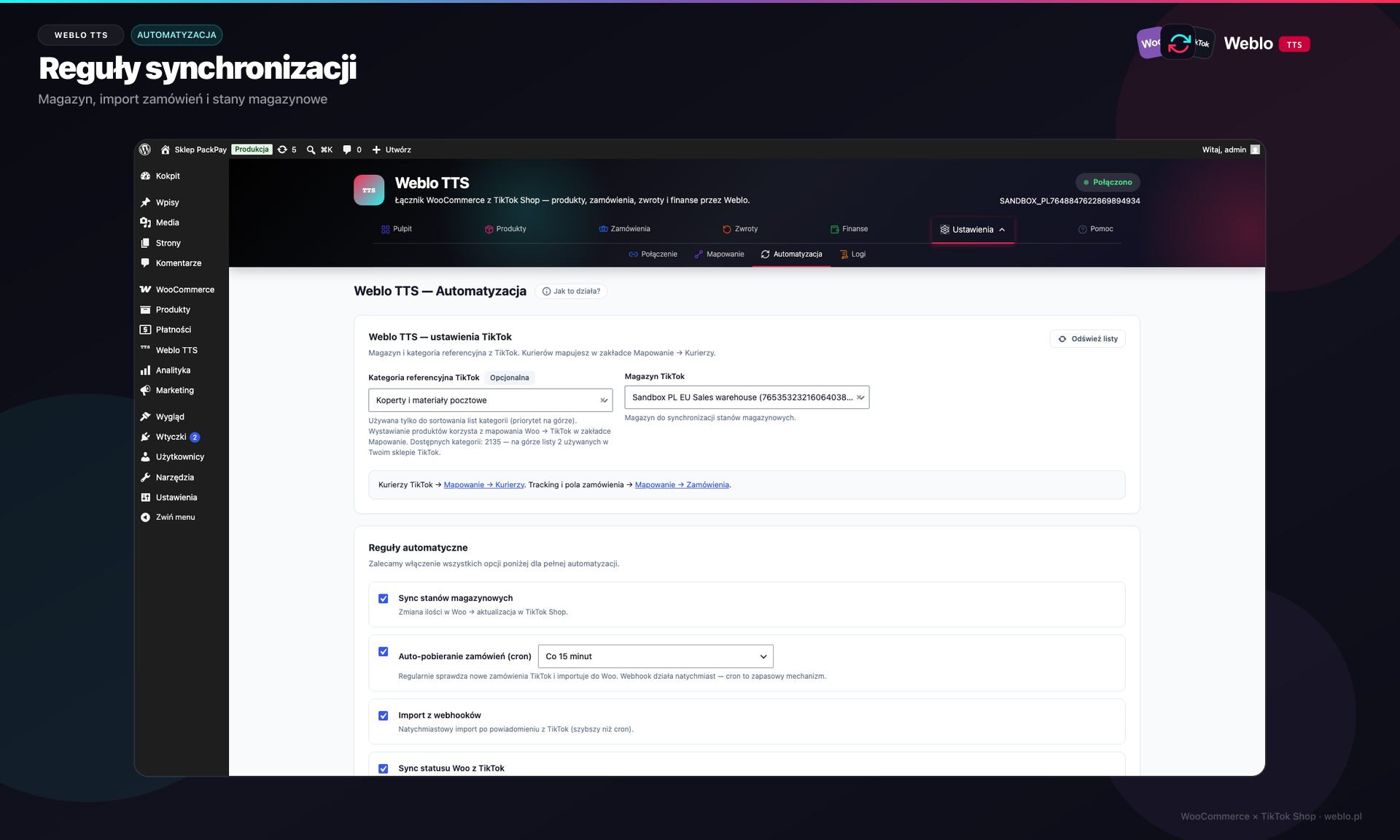
Step 5 - Automation
Select TikTok warehouse, refresh lists, enable webhook/cron sync rules, save.
- Warehouse is required for listing and inventory sync.
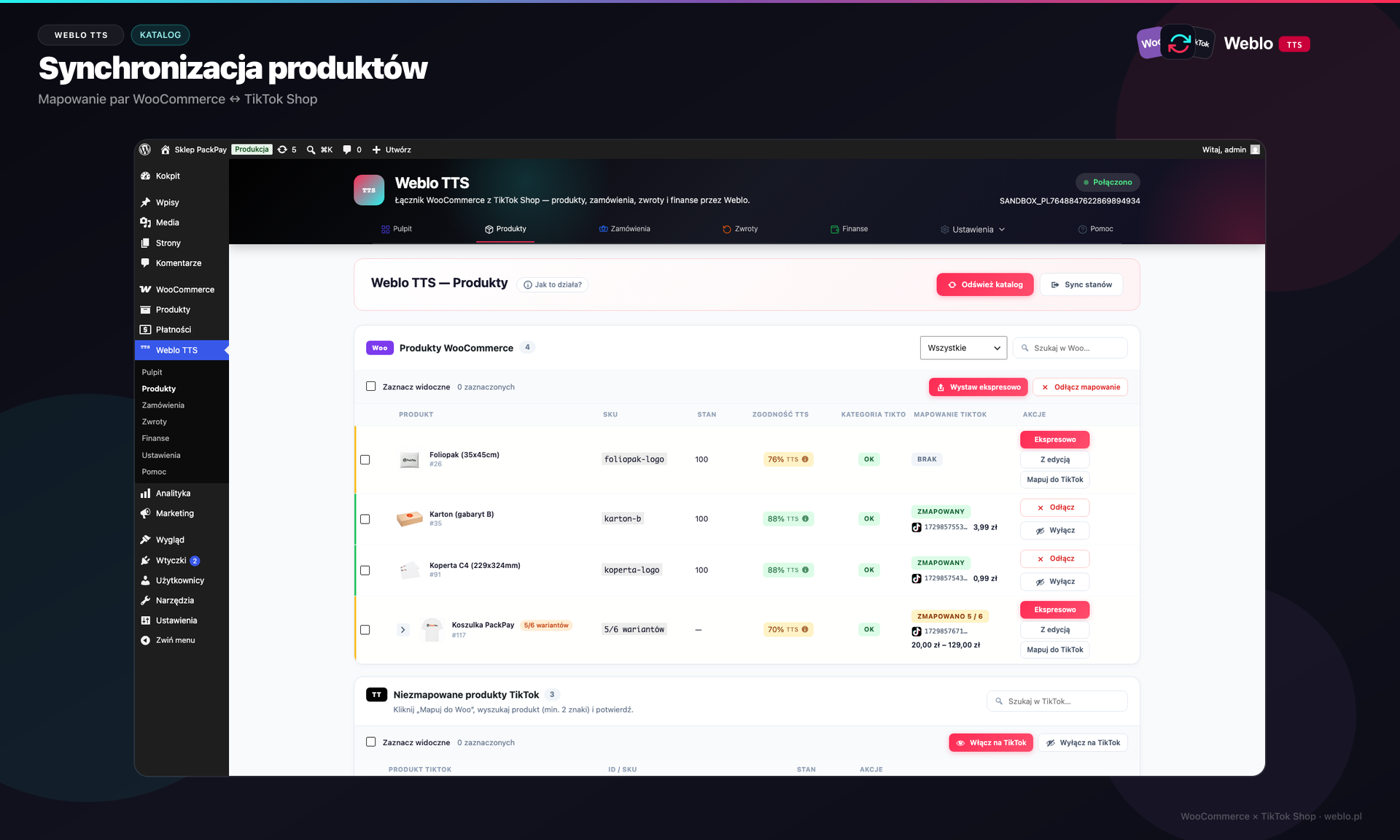
Step 6 - Products
Publish with Express or the editor wizard; map existing TikTok offers to Woo products.
- Fix TTS compliance gaps (EAN, images, GPSR) before express publish.
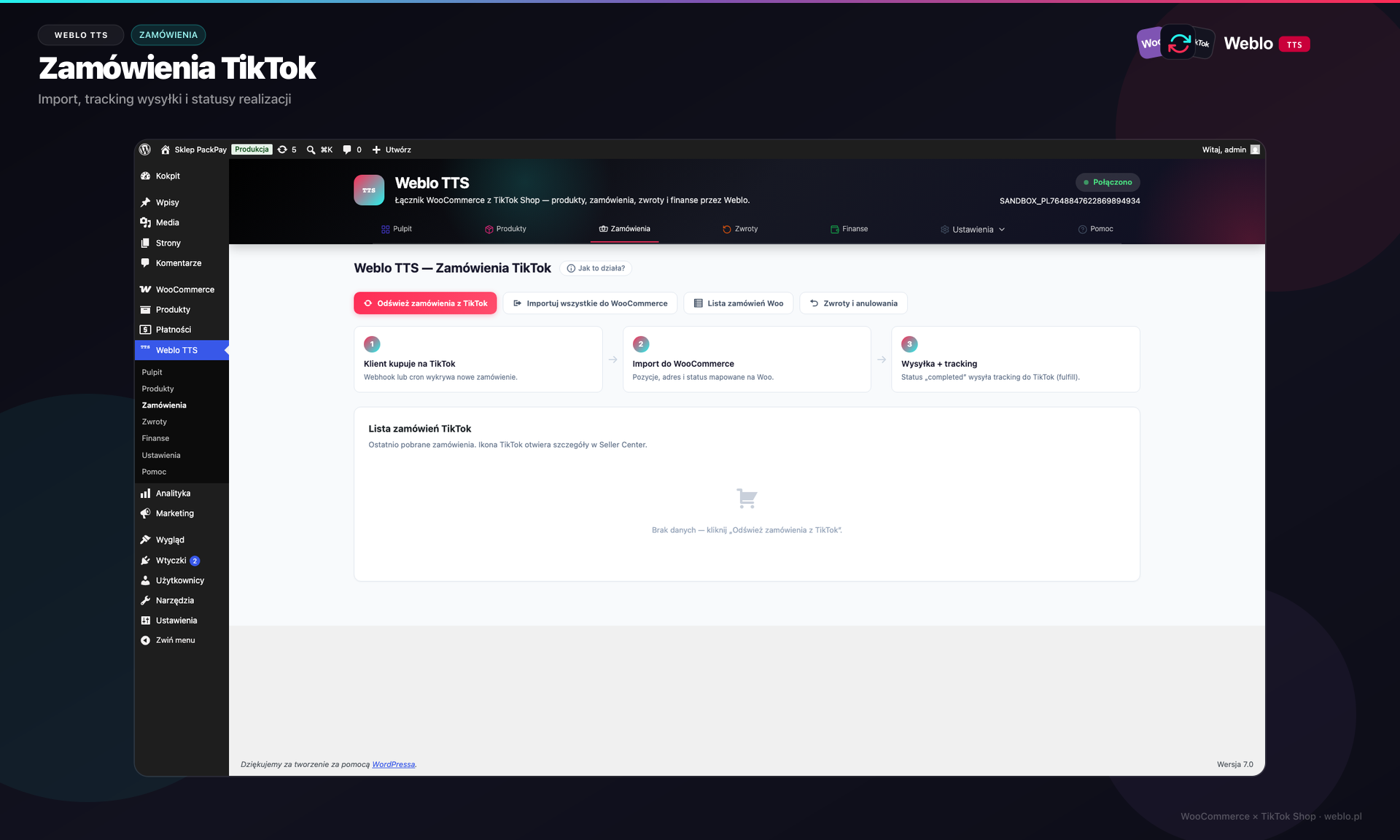
Step 7 - Orders
Refresh from TikTok, import to WooCommerce; enable webhooks in Automation.
- ON_HOLD orders usually wait ~1h before import.
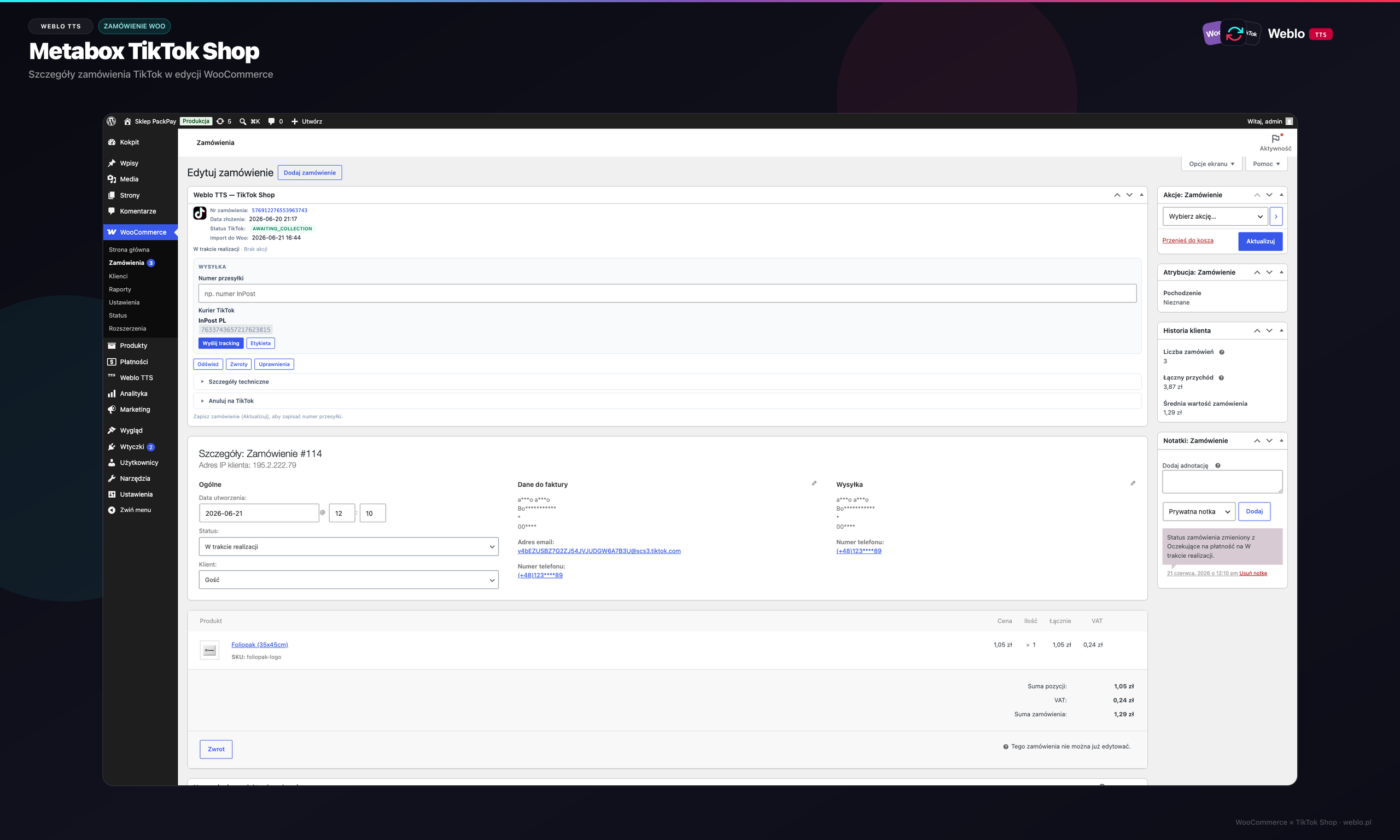
Step 8 - Fulfilment
In the Woo order screen use the Weblo TTS metabox to send tracking / fulfil to TikTok.
- Courier must be mapped; Woo status can trigger fulfil (e.g. completed).
Contact (licence / platform outage)
For licence key issues or Service unavailability:
TIME4IT Sp. z o.o.ul. Plonowa 24I/2, 05-500 Nowa Wola, Polska
KRS: 0001140137 · NIP: 1231569806 · REGON: 540441588
e-mail: [email protected]